


You’re juggling deadlines, meetings, client calls, and the rest of real life—and you also want to add a marketable skill that will move your career forward. That’s a glorious problem to have. The trick isn’t more willpower; it’s a plan that fits inside the constraints of your existing week.
This article walks you through a practical, boardroom-to-laptop-friendly system using a Study Planner to learn a new skill while working. We’ll map a syllabus to projects, build predictable study blocks, create short feedback and progress-review rituals, and protect momentum during busy weeks. If you want a clean, editable study layout you can customize to your schedule, grab the Study Planner / Editable Canva Template here: https://omnimart24h.com/product/study-planner-editable-canva-template/ (includes daily/weekly/monthly sections and a PDF with Canva link, $5.99).
Why this matters: learning when you have a job isn’t about cramming; it’s about reliable small wins that compound. Let’s make that reliable plan.
Start with a Career-Focused Outcome, Not Just Hours
Before you schedule a single study hour, define what “learned” looks like for your work or business.
- Outcome-focused goal: Example — “Ship an automated email sequence using Python scripting for our onboarding process.” That’s clearly linked to revenue or retention.
- Skill-centered goal: Example — “Be able to refactor and deploy basic Python scripts for automation.”
- Milestone measure: Example — “Complete three automation scripts and deploy one in production by month three.”
Why this helps: vague goals (I want to learn Python) lead to endless tutorials. Specific outcomes let you map a real syllabus to practical projects.
Translate the Syllabus Into Projects
If you’re taking a course, have a book, or following an online curriculum, convert theoretical modules into deliverable micro-projects that matter to your job.
- Module → Project mapping
- Intro to syntax → Build a logging script for a repetitive task you do.
- Data structures → Create a contact parser to clean email lists.
- APIs → Automate a weekly report fetch and email.
- Benefits: You’ll practice in context, which accelerates retention and gives immediate ROI for your time.

Use the Study Planner to Build a Real Week-Friendly Schedule
The Study Planner (daily/weekly/monthly sections) is exactly the tool to keep this system work-friendly.
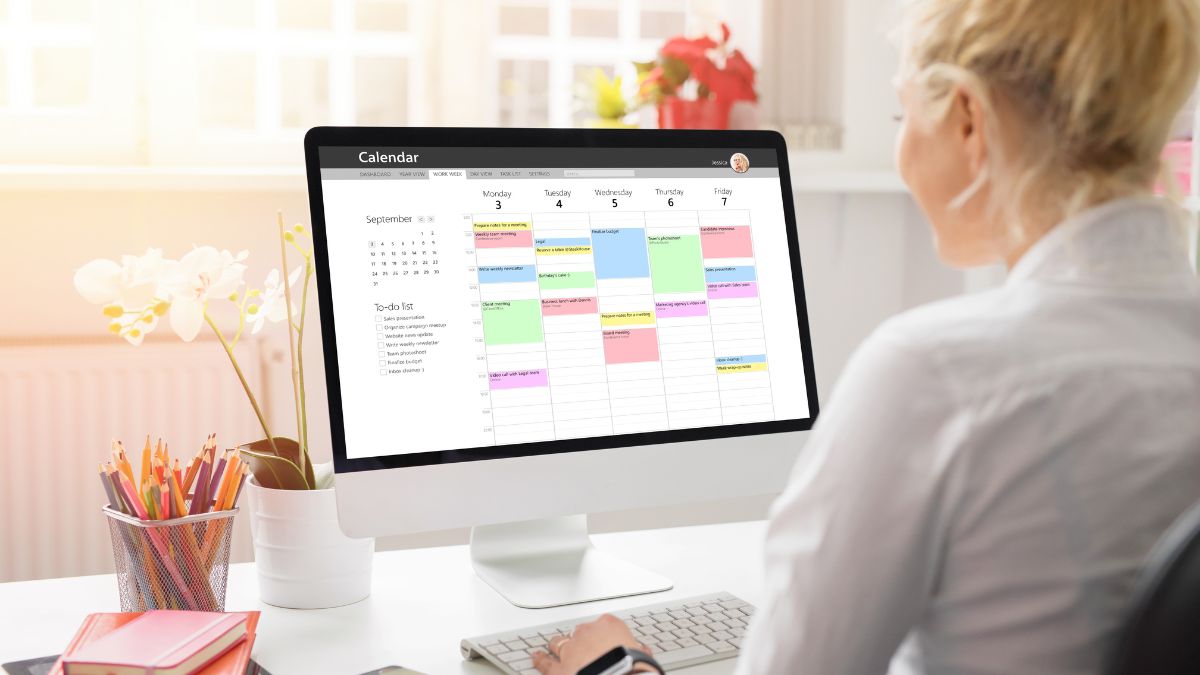
- Monthly view: Block out major milestones (project deadlines, course module completion).
- Weekly view: Assign which micro-projects or lessons will be tackled that week. Keep it realistic—aim for 3–5 focused study sessions max.
- Daily view: Plan short study blocks and the exact task (e.g., “Read 15 mins: Module 2; 30 mins: Work on contact parser unit test”).
Practical tip: Color-code your planner. Use a single color for study to visually guard that time on a busy week spread. The Study Planner is editable in Canva so you can set up color-coded sections that match your workflow and preferences.
How Many Study Blocks Are Realistic?
You don’t need long daily sessions. Quality beats time.
- 2–3 focused blocks per week of 45–60 minutes each is a great starting point for deep skill work.
- 10–20 minute micro-sessions work for review, flashcards, or repeat practice.
- Weekend double-block: Use one 90-minute block if your weekdays are truly full.
Example schedule (for a full-time 9–5 job):
- Monday 7:00–7:45 AM: Review notes and set micro-goals
- Wednesday 8:00–9:00 PM: Hands-on coding/project work
- Saturday 10:00–11:30 AM: Deep project session (build + test)
Protect Study Time Using Workaday Boundaries (without reinventing your whole routine)
You’re not splitting your day; you’re inserting focused learning into it.
- Treat study blocks like client meetings: add them to your calendar and label them as “Focus: Skill.”
- Micro-commitments: Tell a colleague or accountability buddy you’ll be busy during that block (quick message is enough).
- Context switching reduction: Batch study tasks by type—reading, hands-on, review—so you arrive ready.
Portable Workflows for Commuting and Travel Days
Not every day will be ideal. Use the Study Planner’s daily sections to set portable tasks.
- Low-focus tasks for transit: read short chapters, watch a 10–15 minute tutorial, review flashcards.
- High-focus days: schedule hands-on coding or project implementation.
- During business trips: narrow tasks to outcome-friendly deliverables (more on travel later).

Build Feedback and Progress Review Into Your Planner
Learning without feedback is slow. Create a monthly and weekly review ritual in the Study Planner.
- Weekly quick review (15 minutes)
- What did I complete?
- What felt hard?
- What will I adjust next week?
- Monthly progress check (30–45 minutes)
- Compare work projects to learning milestones.
- Demo something to a colleague or record a short walkthrough video for feedback.
- Update your syllabus-to-project mapping.
Why this matters: feedback loops turn noise into direction. Even small corrections prevent months of learning the wrong patterns.
Example Feedback Loop for a 12-week skill plan
- Week 4: Build first micro-project and ask a teammate for code review or input on workflow.
- Week 8: Present a demo to a peer or manager; log their feedback in the Study Planner.
- Week 12: Deploy a production change or deliver a portfolio piece and set a new skill-related goal.
Protect Momentum During Busy Work Weeks
Weeks will always be uneven. The planner helps you shrink or pause learning without losing the thread.
- Accept a light week: Downgrade to 2–3 10–15 minute micro-sessions focused on review or passive learning.
- Use the Study Planner’s weekly spread to mark an “intensity” level: Heavy / Moderate / Light. That reduces guilt and keeps a rhythm.
- Reclaim work windows: if a scheduled study session is canceled, reschedule it within the same week rather than skipping entirely.
Practical tactic: create a fallback list of “low-effort” study tasks in the planner (e.g., read one article, revise notes, watch a 10-min tutorial). When life gets chaotic, pull from this list.

Make Learning Stick with Project Deliverables
The fastest path to usable skills is to build things that matter to your day job.
- Define a Minimum Viable Product (MVP) per module. If you’re learning analytics, an MVP could be “a dashboard widget showing weekly sign-ups.”
- Add the MVP deadline to the Study Planner monthly view and map backward to which lessons support it.
- Use the daily view to list specific, testable tasks (e.g., “write parser for CSV import” instead of “work on analytics”).
Case Study — Marketing Manager Learning SQL
- Outcome: Build a query to generate weekly campaign performance reports.
- Syllabus-to-project mapping:
- Week 1–2: Basic SELECT queries → Practice on sample datasets.
- Week 3–4: JOINs and aggregations → Create a merged report combining campaigns and conversions.
- Week 5: Automate report export → Write a script to export CSV weekly.
- Planner use: Monthly milestone for the final automatable report, weekly tasks in the daily planner, and a monthly review to capture feedback from the data team.
Use the Study Planner to Track Micro-Wins and Motivation
Motivation is not magic; it’s visible progress.
- Log every small success in your planner: “Completed module 2,” “Fixed bug,” “Presented demo.”
- Celebrate in small ways—coffee, a walk, or an entry in your planner that marks the win.
- Visual momentum: The monthly section is great for tick-marks or progress bars. The Study Planner’s editable Canva format lets you create visuals that match your personal motivation style.
When to Pause, When to Pivot
Not all skills or courses deserve your long-term time. Use planned checkpoints to decide.
- Decision checkpoint: After each milestone (4 or 6 weeks), answer:
- Is this skill creating value at work?
- Am I enjoying the work enough to continue?
- Can I apply what I’ve learned immediately?
- If the answer is no: pause, adapt the syllabus, or pick a shorter micro-skill that delivers value faster.
Practical Templates to Put in Your Study Planner Today
Here are actionable items to add to the Study Planner this week.
- Syllabus-to-project map (monthly section)
- Column A: Module name
- Column B: Project deliverable
- Column C: Target completion week
- Weekly plan (weekly section)
- 3 study blocks: time, task, desired outcome
- Intensity label (Heavy/Moderate/Light)
- Fallback micro-tasks list
- Daily micro-task (daily section)
- 1 focused goal (30–60 min)
- 1 passive goal (10–20 min)
- 1 reflection prompt for end-of-day (What worked? What to adjust?)
Example Weekly Plan in the Study Planner
- Monday AM: 30 min—Read module; set two actionable items
- Wednesday PM: 60 min—Hands-on project build (MVP component)
- Saturday AM: 90 min—Deep work: integrate and test
- Sunday 15 min: Weekly review + plan next week
Tools and Environment Tweaks That Help
You don’t need a new gadget; you need a few good defaults.
- Single place for notes and tasks: Put study tasks in the Study Planner and mirror only critical items in your calendar.
- Dedicated study playlist and a minimal workspace for deep sessions.
- Use a “Do Not Disturb” calendar event for your study blocks. Treat them like meetings.
Keep It Flexible — The Planner Is a Living Document
The best plans adapt. Update your Study Planner weekly; move deadlines if priorities shift; note new opportunities that pop up at work. Because the planner is editable in Canva and includes daily, weekly, and monthly sections, you can quickly redesign layouts, color codes, and visuals to match evolving needs and energy levels.
How to Use the Study Planner Template Right Now

- Step 1: Purchase and access (PDF includes Canva link) — https://omnimart24h.com/product/study-planner-editable-canva-template/($5.99). The planner gives you daily, weekly, and monthly sections you can edit to match your schedule.
- Step 2: Fill the monthly view with your syllabus-to-project map and milestone dates.
- Step 3: Block 2–3 study sessions in the weekly view and specify the exact deliverable in the daily view for each session.
- Step 4: Set weekly and monthly feedback slots to keep the loop alive.
Commercial-link disclosure: The Study Planner link above is a direct product recommendation; the product is editable in Canva and includes a PDF with the Canva link. Purchase is optional.
Final Thought — Small, Strategic Steps Beat Big Gaps
Learning a new skill while working doesn’t require heroic time commitments. It requires direction, structure, and small, outcome-focused practice sessions that accumulate. Use your Study Planner to convert syllabus content into job-relevant micro-projects, protect time with real calendar blocks, and run short feedback loops so each session nudges your career forward.
You can do this without derailing your workweek. Start with one realistic study block this week—open the planner, write the single outcome, and do it. Momentum follows action.









Leave a Reply