

For months I was the human copy-and-paste machine. Open a document, copy the text, paste it into Claude, get an answer, copy it back, paste it into another app. I told myself it was “working with AI.” Really, I was working for it.
Then I discovered connectors, skills, and plugins, and everything changed. Instead of shuttling information back and forth, Claude can reach into the tools I already use and follow instructions I’ve saved once and reuse forever. And with Anthropic’s growing marketplace and a wave of new integrations, it’s easier than ever to set this up, even if you’re not technical.
In this guide, I’ll explain what Claude connectors, skills, and plugins are, where to find them, which integrations are worth trying first, and how to use them safely.
The Three Building Blocks (Explained Simply)
These words get thrown around a lot, so here’s my plain-English version:
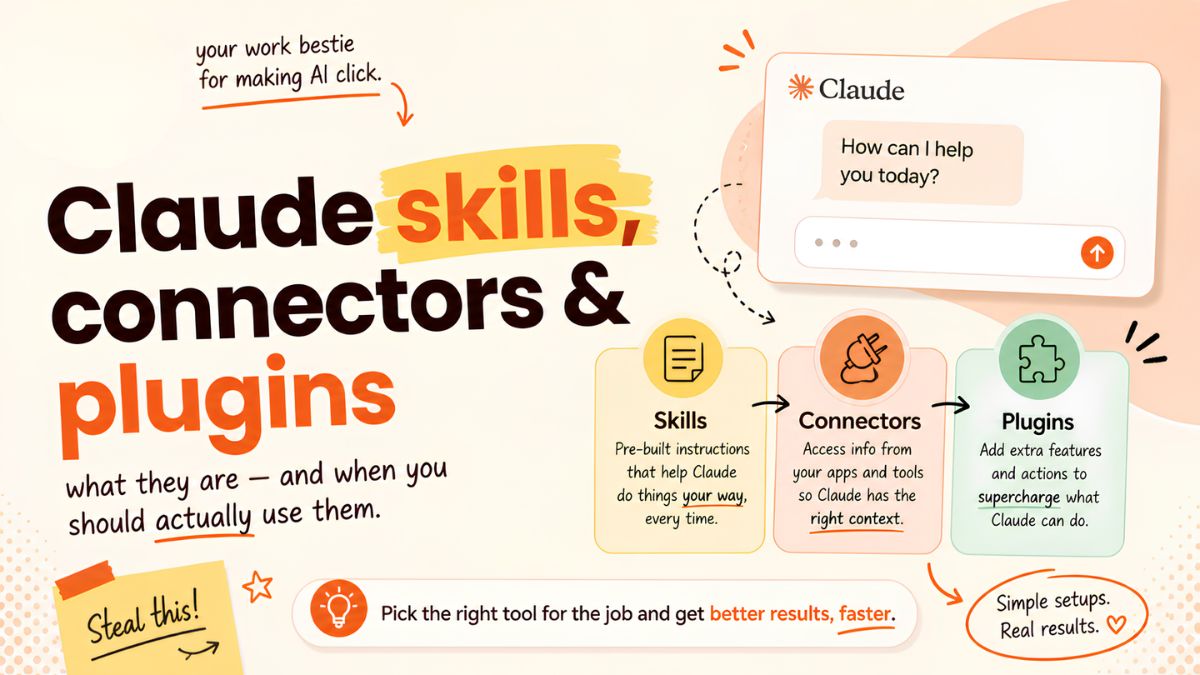
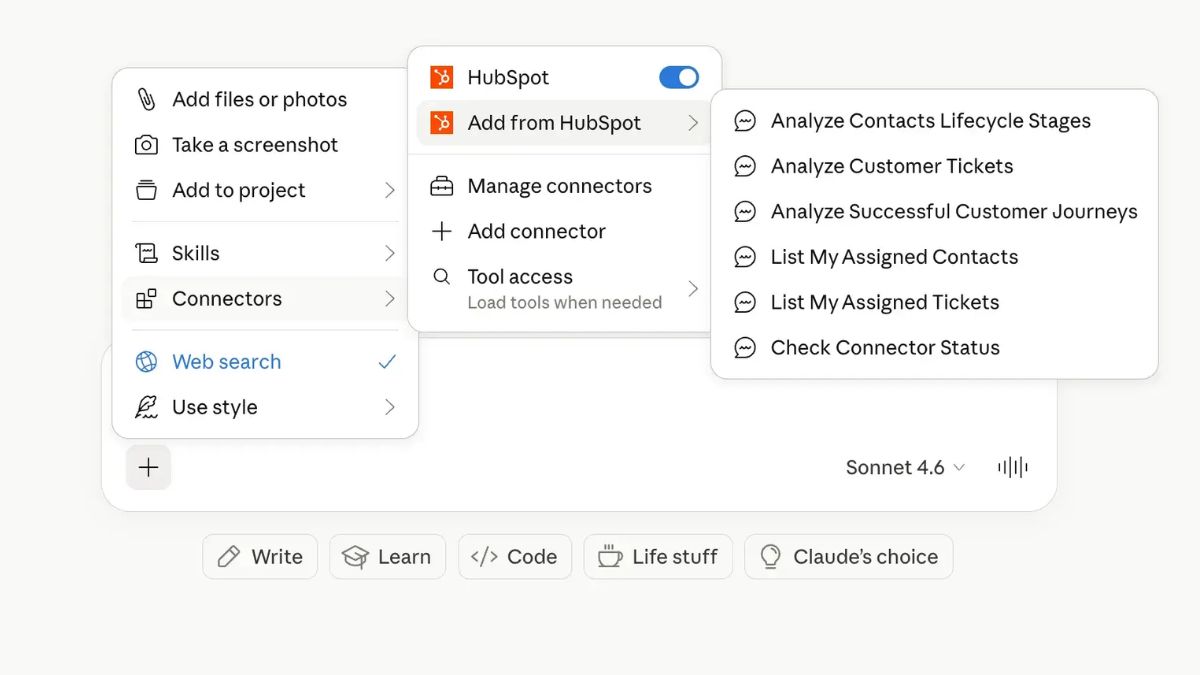
- Connectors are bridges between Claude and other apps, like your cloud storage, calendar, design tool, or website platform. They let Claude read information and, with your permission, take actions. Many connectors use a standard called MCP (Model Context Protocol).
- Skills are folders of instructions that teach Claude how to do a specific kind of task well, such as creating a formatted report, following your brand voice, or building a deck the way your team likes it. You save them once, and Claude uses them when relevant.
- Plugins bundle things together: tools, commands, and skills in one package for a particular job or workflow.
Think of it this way: connectors give Claude access, skills give Claude know-how, and plugins package both.

What’s New and Why It Matters
A few recent developments worth knowing about:
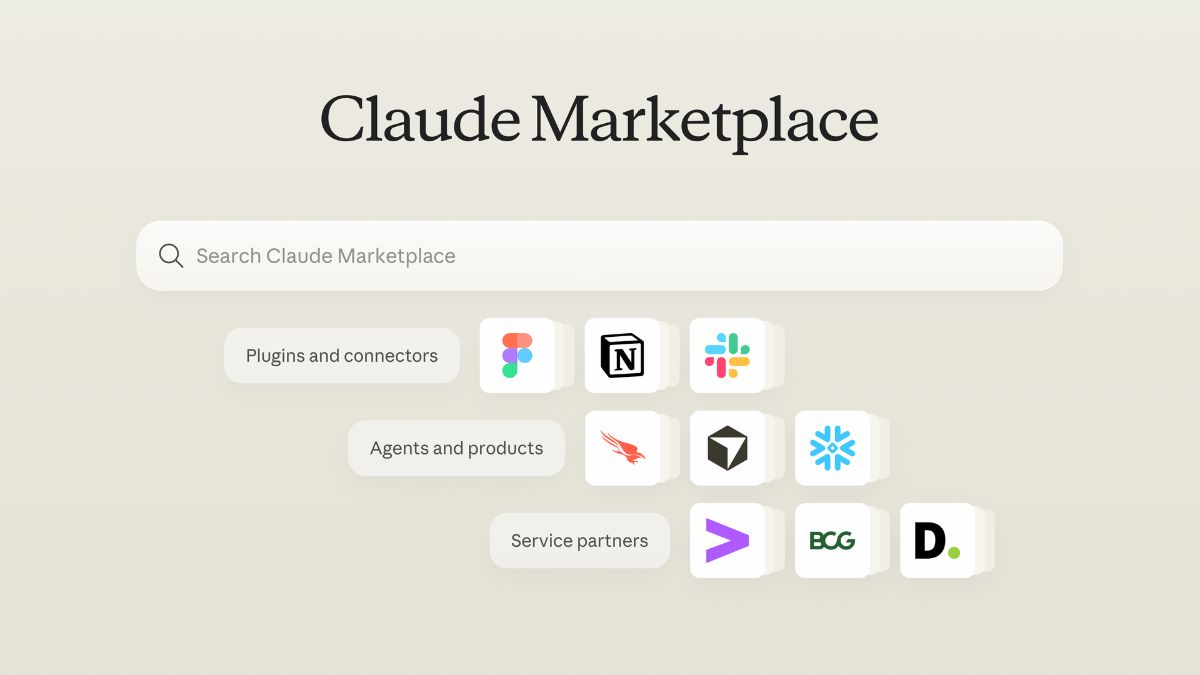
- A marketplace for plugins and connectors. Coverage of Anthropic’s Claude Marketplace describes a place to browse thousands of plugins, connectors, and partner agents. Availability can vary by plan and organization, and some capabilities may require admin approval.
- Agent Skills became an open standard under a foundation. Anthropic donated the Agent Skills standard to the Agentic AI Foundation, part of the Linux Foundation. That means skills aren’t locked to one company, which is good news for anyone investing time in building them.
- Claude is showing up inside your other tools. A beta add-on brings Claude into Google Docs, Sheets, and Slides for paid plans. Claude is also available as a browsing agent in Chrome, as helpers in Excel and PowerPoint, and in Slack through Claude Tag, where teammates can tag Claude to delegate tasks.
- Cowork can use many of these integrations, which makes it easier to go from “ask a question” to “get the task done.”
- Voice on the go. Claude’s voice mode lets you have hands-free spoken conversations, and the iOS app extends voice mode to the car through Apple CarPlay.
Where Connectors Help Most (With Examples)
Documents and files
Connect your cloud storage and Claude can search, read, and summarize your files. Example prompt:
“Find my latest proposal for [client name] and summarize the pricing and timeline in five bullets.”
Design
A design connector (for example, a popular graphic design platform) lets Claude help create or adapt visuals.
“Create three Instagram post layouts for my ‘Meet the Founder’ series using my brand colors.”
Website and publishing
A website platform connector can help draft, organize, and manage content.
“Draft a blog post outline on [topic] and list the pages on my site I should link to.”
Team communication
In Slack, you can tag Claude in a thread to summarize a discussion, draft a reply, or turn decisions into action items.
Spreadsheets and slides
Use Claude in Excel or PowerPoint to clean data, build formulas, or turn analysis into a presentation without leaving the app.
How to Set Up Your First Connector (Step by Step)
- Pick one app you use every day. Don’t connect everything at once.
- Open Claude’s settings or connector directory and search for the app. Look for the official listing.
- Read the permissions. Does it ask for read-only access or the ability to edit and send? Choose the smallest permission that gets the job done.
- Test with a harmless task. Ask Claude to summarize or list something, not delete or send.
- Review the results. If it works well, add one more task.
- Keep a short log of what’s connected and why, so you can disconnect anything you no longer need.

How to Build a Simple Skill
A skill doesn’t have to be fancy. It’s essentially a set of clear instructions you want Claude to follow whenever you ask for a certain task. Good candidates:
- Brand voice: how you write, words you love, words you avoid, example posts
- Client report format: the exact sections, order, and tone you want
- Content repurposing recipe: turn one long piece into five posts, a newsletter intro, and a video script
- Proposal template: your standard structure, pricing logic, and terms
- Weekly review: a repeatable summary of wins, open tasks, and next steps
How to write one:
- Describe the task and who it’s for.
- List the steps in order.
- Add one or two examples of a great result.
- Note what to avoid.
- Test it on a real job and refine.
Some Claude tools can help you create skills, and there’s a skill-building helper available to guide the process. If you’re an organization, shared skills can standardize quality across a team.
Pro tip: Start with the task you repeat most often. Even a basic skill can save hours over a month.

Safety Rules for Connectors, Skills and Plugins
More connections mean more things that can go wrong. Here’s my checklist:
- Least access. Only connect what you need, with the lowest permissions that work.
- Know the publisher. Prefer official or well-reviewed listings. Be cautious with unknown third-party add-ons.
- Inspect executable add-ons. Some extensions for developer tools, such as Claude Code mods, are code that runs on your machine and aren’t sandboxed. Review the source and permissions before installing, especially on devices with client data or credentials.
- Watch out for hidden instructions. Documents, web pages, and emails can contain text trying to trick an AI into doing something you didn’t ask for. Don’t let an agent act on outside content without review.
- Require approval for risky actions. Sending, paying, publishing, or deleting should always involve you.
- Review and clean up regularly. Disconnect tools you no longer use.
Beginner-Friendly Setups to Try
- Content creator: Cloud storage + design tool + a brand voice skill
- Freelancer: Cloud storage + proposal skill + email drafts for review
- Small team: Slack + documents + a weekly report skill
- Online business owner: Website platform + spreadsheet help + an order or customer-feedback summary routine
Build a Workflow That Compounds
The real power comes from combining pieces: a connector that gets information, a skill that knows how you like it handled, and a clear prompt that tells Claude what to do. If you’d like a step-by-step playbook for building those workflows for your business, take a look at my guide:
Trust me, once you’ve built your first good workflow, you’ll never go back to copy-and-paste.
Final Thoughts
Connectors, skills, and plugins turn Claude from a place you visit into a teammate who works where you work. Start small, choose one app and one skill, test carefully, and expand from there. Keep your permissions tight and your own judgment in the loop. A few well-chosen integrations will do far more for you than a dozen you never use.









Leave a Reply