

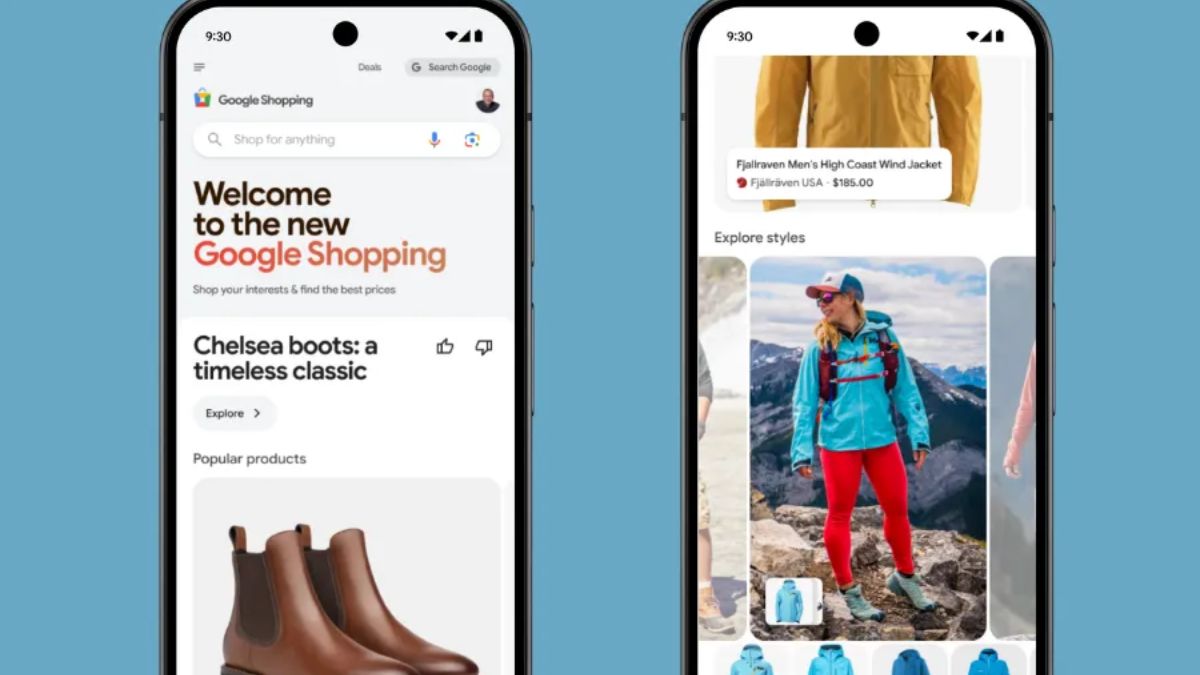
Here’s something that surprised me when I first started helping online sellers: some of them spent weeks polishing their product pages, rewriting descriptions, adding badges, and tweaking buttons, while their Google Shopping listings sat there with blurry photos, vague titles, and a price that didn’t match the website. Guess which one the customer saw first?
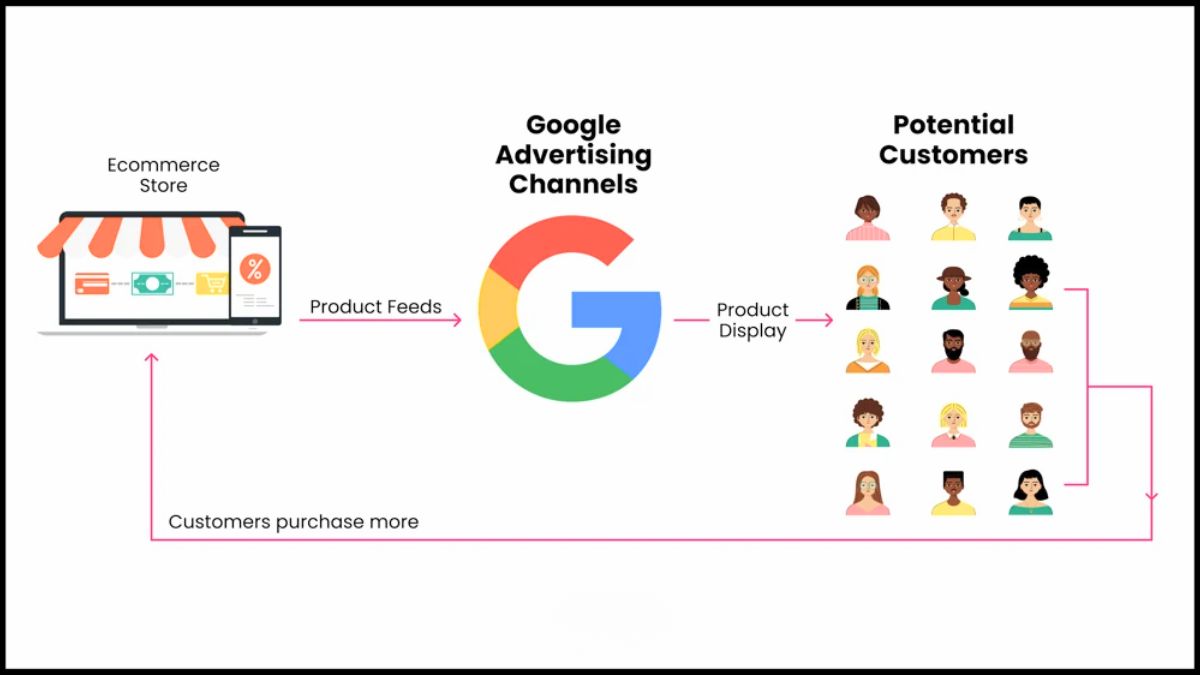
If you sell physical products online, your Google Shopping feed is doing the job your product page used to do. It’s the data file that tells Google what you sell, how much it costs, what it looks like, and whether it’s in stock. Shoppers often decide whether to click before they ever see your site.
And that matters more now. A recent study covered by Search Engine Land found that Google’s AI Mode sent about 57% of its product links to Google Shopping. Google has also launched a Universal Cart that lets shoppers save products from multiple retailers, watch price and stock changes, and check out with Google Pay. All of that runs on product data.
In this guide, I’ll explain how a Google Shopping feed works, what to fix first, and a simple checklist for beginners.
What Is a Product Feed?
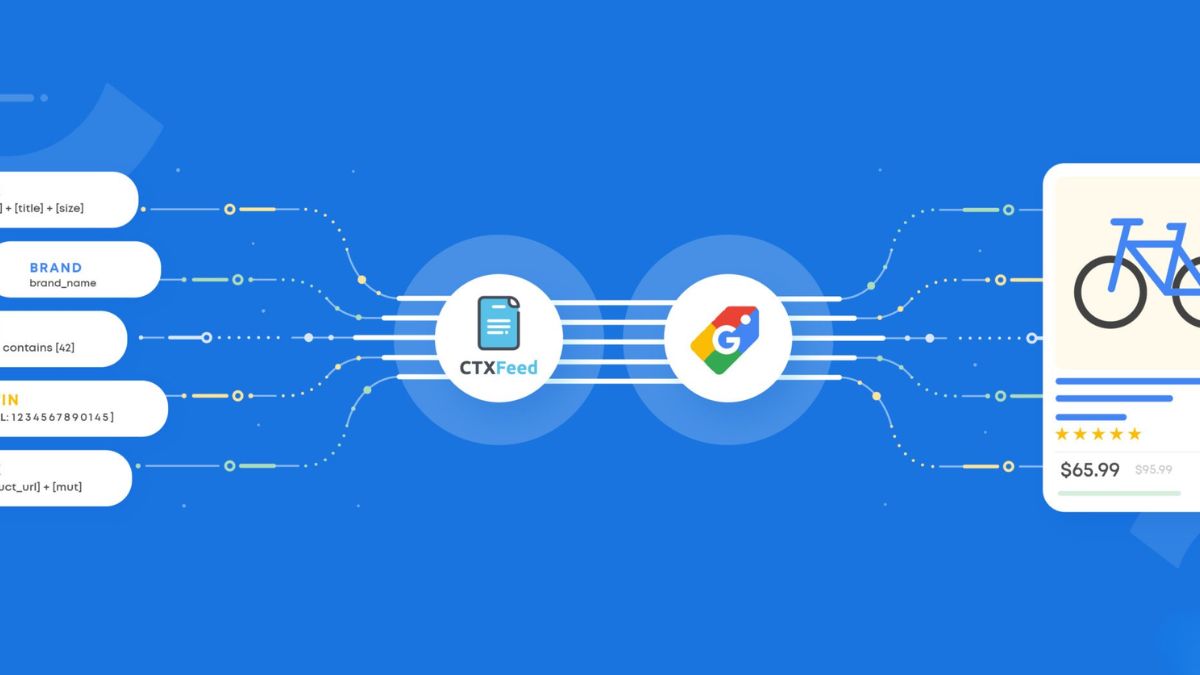
A product feed is a structured list of your products, usually uploaded or synced to Google Merchant Center. Each product has attributes such as:
- Title and description
- Price and availability
- Image links
- Brand, GTIN (barcode number), and condition
- Product category and variants (size, color)
- Shipping and return information
Google uses this data to show your products in free listings and in Shopping ads, and it can feed into other campaign types too. If you use an e-commerce platform like Shopify, a plugin or built-in integration can usually sync your catalog automatically.
Why the Feed Matters More Than Ever
- AI answers lean on structured data. AI Mode and shopping features pull product information from feeds, so weak data means weak visibility.
- Paid and organic listings sit side by side. Google has said Shopping ads can sit next to organic visual results in carousels, and it is testing clearer “Sponsored” and “All products” labels. If your data is poor, you lose in both places.
- Shoppers compare across stores. Universal Cart and similar tools highlight price and stock changes, so accuracy and competitive pricing matter.
- Mistakes cause disapprovals. Mismatched prices, missing information, or policy violations can pause your products.
Step 1: Set Up Merchant Center Properly
- Create and verify your account. Confirm your website domain.
- Add business information: name, address, contact details, and policies.
- Set up shipping and return policies that match your website.
- Connect your product source through your store platform, a scheduled file, or a plugin.
- Opt into free listings so your products can appear without ads.
- Check the Diagnostics tab for errors and warnings, and fix them first.
If you have a physical store, Google has introduced a store address attribute for local inventory feeds. If you use local inventory, add it and make sure addresses match your Business Profile exactly.
Step 2: Write Better Product Titles
Titles are one of the most important parts of your feed. A good title includes the details a shopper would search for:
A simple formula: Brand + Product type + Key feature + Size/Color/Quantity
- Weak: “Cute bag”
- Better: “Willow & Co Canvas Tote Bag, Waterproof Lining, Navy Blue, Large”
Tips:
- Put the most important words first.
- Include features people search for (material, size, color, use).
- Avoid all caps, promotional text, and keyword stuffing.
- Make sure the title matches what’s really on your product page.
Step 3: Improve Images
Shoppers judge with their eyes:
- Use clear, high-quality images that show the product on a clean background.
- Avoid watermarks, promotional overlays, and placeholder images.
- Add extra images showing different angles, scale, and real-life use.
- Keep images consistent across your catalog.
- Make sure the image shows the exact variant (color, size) listed.
Step 4: Keep Price and Stock Accurate
This one causes more disapprovals than almost anything else:
- Your feed price must match your website price, including sale prices.
- Availability must match your actual stock. Don’t advertise what you can’t ship.
- Update frequently, especially during busy sales periods. Automatic daily or more frequent syncs help.
- Be careful with discount codes and automatic offers. Google has begun auto-applying some website coupons to certain campaigns, so check what’s showing and add your own offers if you want control.
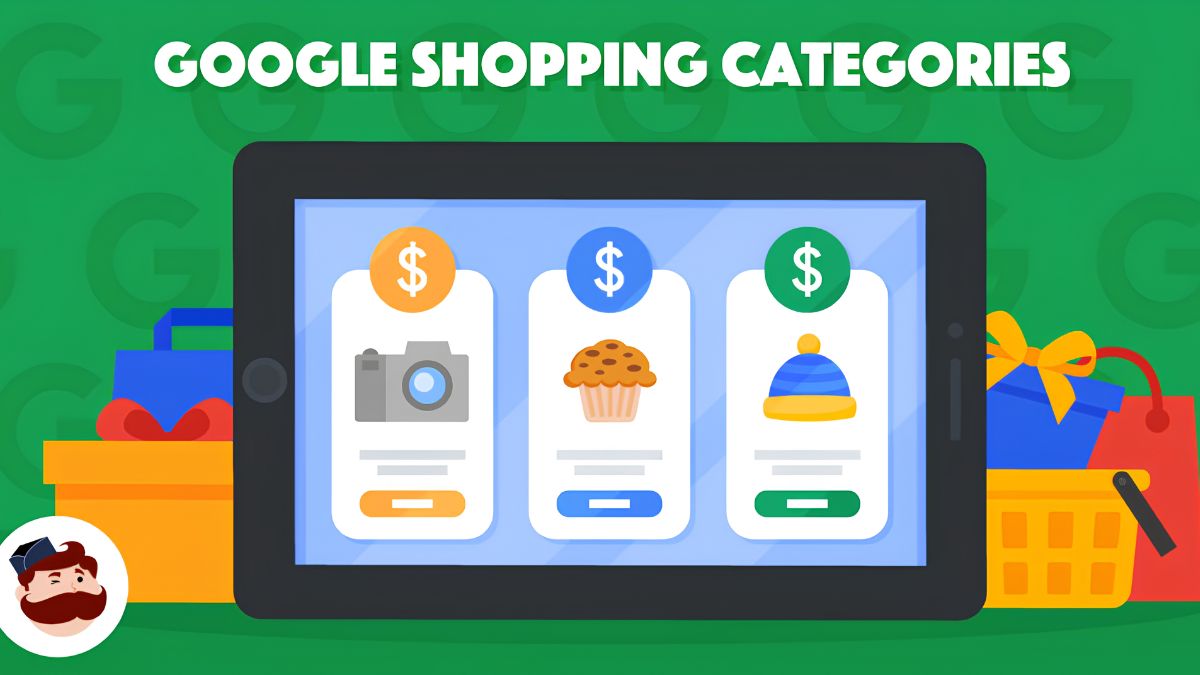
Step 5: Fill in the Details That Unlock Visibility
- GTINs and brand names help Google match your product to the right listing.
- Product categories should be as specific as possible.
- Variants: Use item group IDs so sizes and colors are grouped properly.
- Descriptions: Write clear, honest, detailed descriptions with materials, dimensions, uses, and care instructions.
- Shipping and returns: Make them easy to find and accurate.
- Custom labels: Tag products by margin, season, or bestseller so you can manage campaigns smartly.
Step 6: Read Your Feed Like a Stranger
Once a week, spend 20 minutes reviewing your top five products as Google shows them:
- Would I understand what this is from the title and image alone?
- Is the price competitive?
- Is the information complete?
- Would I trust this seller?
Search for your products on Google and see how they appear next to competitors. Take notes, then fix the weakest listings.
Free Listings vs. Paid Campaigns
- Free listings can show your products in Shopping results without ad spend. They’re a great starting point.
- Shopping ads and Performance Max use your feed to run paid campaigns. Start small, track conversions, and add budget only when you see results.
- Reporting tools now show asset-level performance in some campaign types, so look for what’s working.
Common Mistakes to Avoid
- Price and stock mismatches between the feed and the website
- Vague titles with no key attributes
- Poor images or watermarked photos
- Missing GTINs when they’re available
- Ignoring warnings in Merchant Center
- Letting data go stale during promotions
- Misleading claims that violate policy
Your 7-Day Feed Fix Plan
- Day 1: Review diagnostics in Merchant Center and fix errors.
- Day 2: Rewrite titles for your top 10 products.
- Day 3: Replace weak images and add extra photos.
- Day 4: Verify price and stock sync automatically.
- Day 5: Add GTINs, brands, categories, and variants.
- Day 6: Check shipping and return details.
- Day 7: Search your products on Google, compare with competitors, and note the next fixes.
Build Your Whole Marketing System
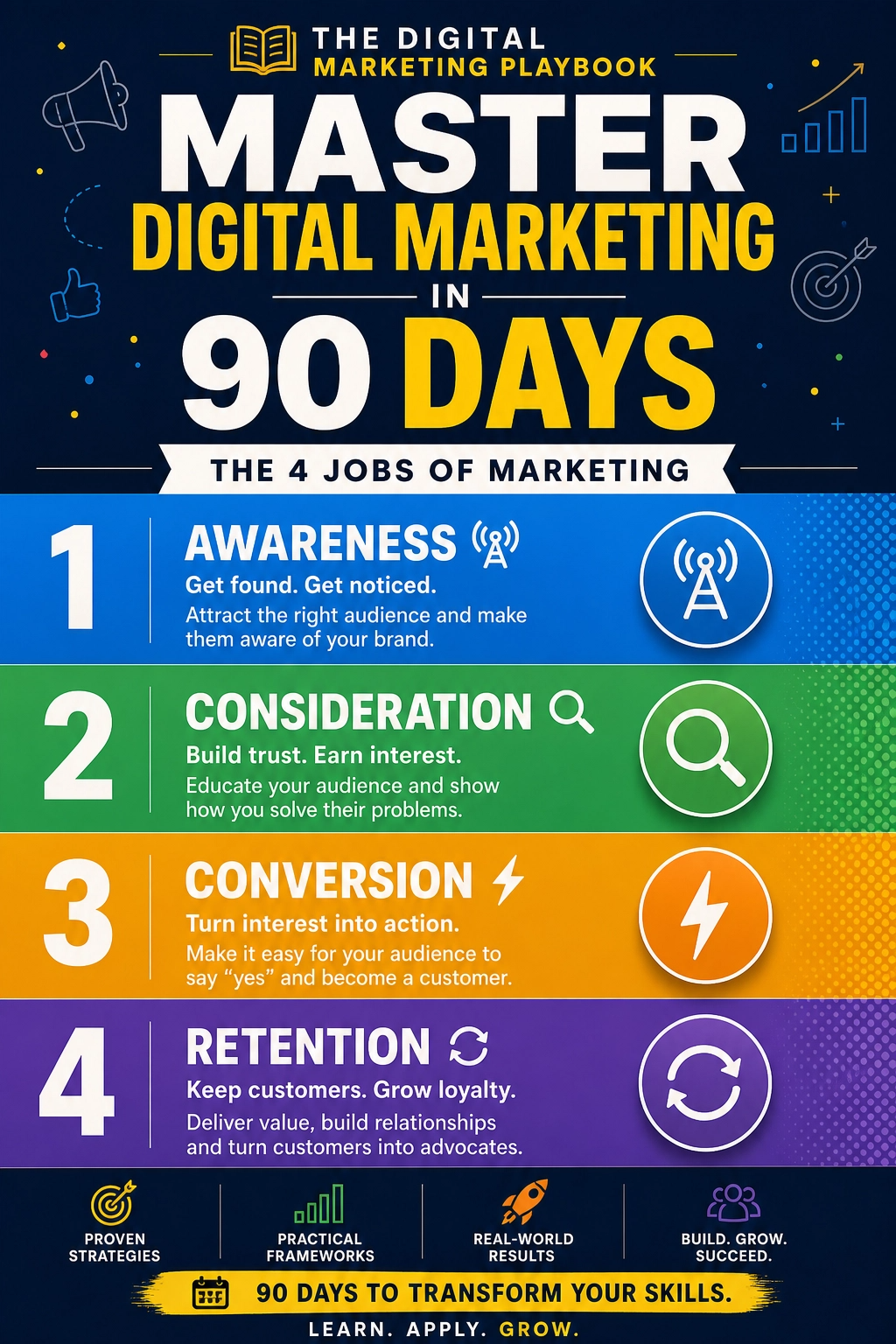
A strong feed gets you seen. A strong marketing system gets you remembered and bought from. If you’d like a step-by-step guide to building one, take a look at my ebook:
The Digital Marketing Playbook
Trust me, clean product data is one of the most overlooked ways to win more sales.
Final Thoughts
Your product feed is your storefront window on Google. Keep it accurate, specific, and visually clear, and it will work for you in free listings, ads, and AI-powered shopping experiences. Start with your top five products this week. A few improvements to titles, images, and data can make a bigger difference than a redesigned page.










Leave a Reply