


How much time do you spend each week creating the same things from scratch? A new tracker, a fresh planning page, a form to organize orders, a list to keep up with emails? If you’re a busy woman running a household, a business, or both, those hours add up.
Editable templates are one of the easiest ways to reclaim that time. With a template, the design and structure are already done. All you have to do is customize it to fit your needs, and you’re ready to go.
In this guide, I’ll show you how editable Canva templates work, why they’re so useful, how to customize them step by step, and how to use them to organize your life and business.
What Is an Editable Canva Template?
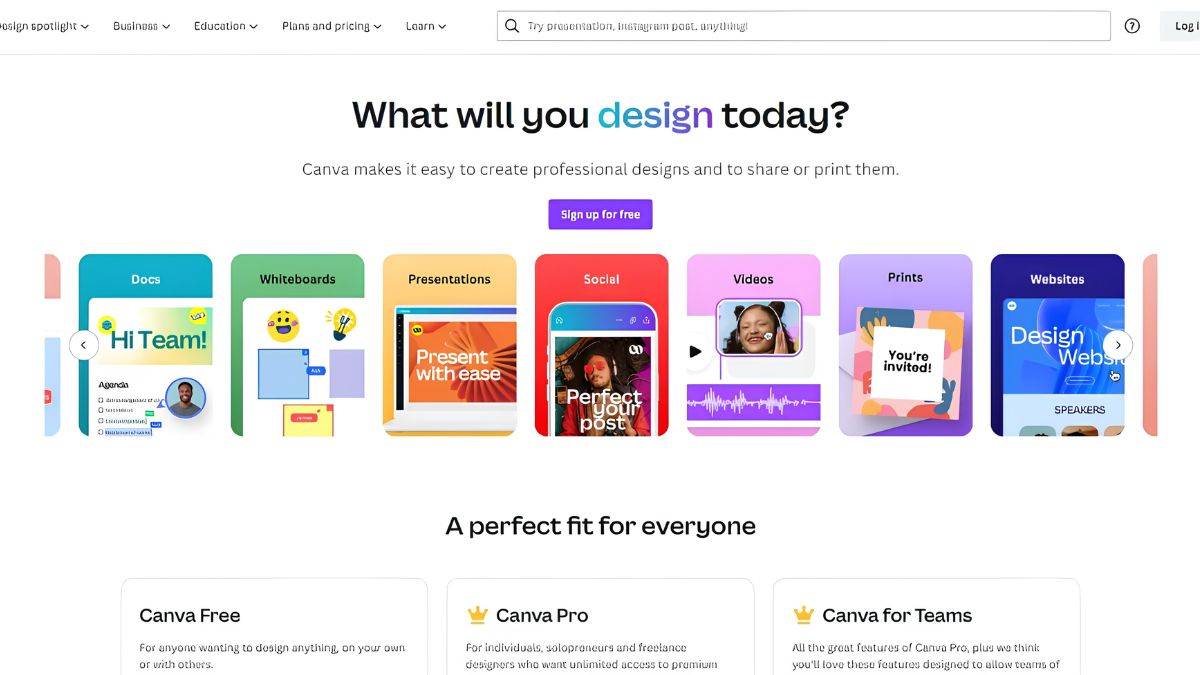
Canva is a popular online design tool that lets you create documents, planners, social media graphics, and more. An editable Canva template is a pre-designed layout that you can open in Canva and change: text, colors, fonts, images, and sections.
Instead of starting with a blank page, you start with a professional structure and make it your own. Once you’ve customized it, you can:
- Print it and use it on paper
- Fill it in digitally on a tablet or computer
- Save multiple versions for different needs
- Reuse it again and again
Why Use Editable Templates?
They save time
A template gives you a ready-made design, so you can skip the layout work and start using it right away.
They’re customizable
Every person organizes differently. With an editable template, you can change labels, add or delete sections, and adjust colors.
They look polished
A well-designed template looks neat and professional, whether it’s for personal use or for sharing with clients.
They’re affordable
Compared with custom design work or buying many separate tools, templates are budget-friendly.
They’re reusable
Use the same template each week or month. Duplicate pages whenever you need more.
They match your style
Change colors and fonts to reflect your personality or brand.
They’re flexible
Print for a paper planner or use digitally. You choose.
Examples of Helpful Editable Templates
Here are some of the types of templates that can make a big difference in your daily life and business.
Inbox and email trackers
Managing messages is one of the most time-consuming parts of the day. The Inbox Tracker (Editable in Canva) helps you keep track of messages that need a reply, follow-up dates, priorities, and status. Because it’s editable, you can change the columns to fit your workflow, such as adding a column for client names or order numbers.

Diet and meal journals
A food journal helps you notice patterns in what you eat and how you feel. The Diet Journal (Editable Canva Template) lets you tailor the layout, so you can track just what’s helpful for you, whether that’s meals, water, energy, or notes. (As always, if you have a health condition or history of disordered eating, talk to a professional before tracking food.)

Sewing and craft journals
Crafters need to track patterns, fabric, measurements, and notes. The Sewing Journal (Editable Canva Template) allows you to customize sections to fit your sewing process, such as adding a page for fabric swatches or removing sections you don’t use.

Order forms and business trackers

Small business owners benefit from consistent forms and trackers, such as an Order Form Journal or Monthly Business Tracker, which save time and prevent mistakes.

Daily and weekly planners
Planners for tasks, priorities, and schedules are some of the most popular templates. A tool like the Work Day Organizer gives you a ready-made daily structure.

Habit and mood trackers
Tracking habits or moods is easier with a clear layout. Try the Mini Habit Tracker Journal or the Mood Tracker Journal.

How to Customize a Canva Template: Step by Step
If you’re new to Canva, don’t worry. It’s designed to be beginner-friendly. Here’s a simple process.
Step 1: Open the template
After purchasing or receiving a template, follow the link or instructions provided to open it in Canva. You’ll usually be prompted to make a copy in your own account. If you don’t have an account, you can create a free one.
Step 2: Make a copy
Always work on a copy so you keep the original untouched. That way, if you make a mistake or want a fresh version later, you can start over.
Step 3: Explore the layout
Click through each page to see what’s included. Note which sections you want to keep, change, or remove.
Step 4: Edit the text
Click on any text box to change the words. You can:
- Rename headings or labels
- Add your name or business name
- Update prompts or instructions
- Adjust the size and spacing
Step 5: Change colors
Select an element and use the color tool to match your style. If you have brand colors, enter their hex codes for consistency. For personal use, choose colors that make you happy.

Step 6: Change fonts
Choose fonts that are easy to read and match your style. Limit yourself to two or three fonts for a cohesive look.
Step 7: Add or remove pages
Duplicate pages you need more of, such as extra daily pages, and delete the ones you don’t need.
Step 8: Add your own touches
Include a logo, icon, photo, or inspirational quote. Use Canva’s elements to decorate if you’d like.
Step 9: Save and download
Download your template as a PDF for printing, or save it as an image. Choose the print-quality option for best results. You can also keep it in Canva to fill out digitally.
Step 10: Test it
Print one page to check how it looks, and fill it in. Make small adjustments, such as increasing the size of a writing area, until it works perfectly for you.
Printing and Using Your Template
If you print
- Choose the right paper size (Letter, A4, or A5).
- Use quality paper if you’ll write with pens or markers.
- Print double-sided if you want a booklet-style layout.
- Use a binder, disc-bound system, or folder to keep pages together.
- Print a few extra pages so you always have spares.
If you use digitally
- Save as a PDF and use an annotation app on your tablet.
- Use Canva itself to type directly into text boxes.
- Duplicate pages for new days or weeks.
- Back up your files in cloud storage.
Try both and see what feels best for you. Many people use a hybrid: digital for tracking, and paper for reflection.

Using Templates to Save Time Every Week
Here are practical ways editable templates can give you hours back.
Streamline your planning
Use the same weekly planning template each Sunday, rather than inventing a new layout every time. Pair it with a quick brain dump from the Brain Dump Worksheets, and you’ll be planned in minutes.

Reduce decision fatigue
When your systems are set up in advance, you don’t have to decide how to organize things each time. You simply fill in and go.
Standardize your business processes
Use templates for orders, invoices, and customer messages to create consistency and avoid errors.

Track what matters
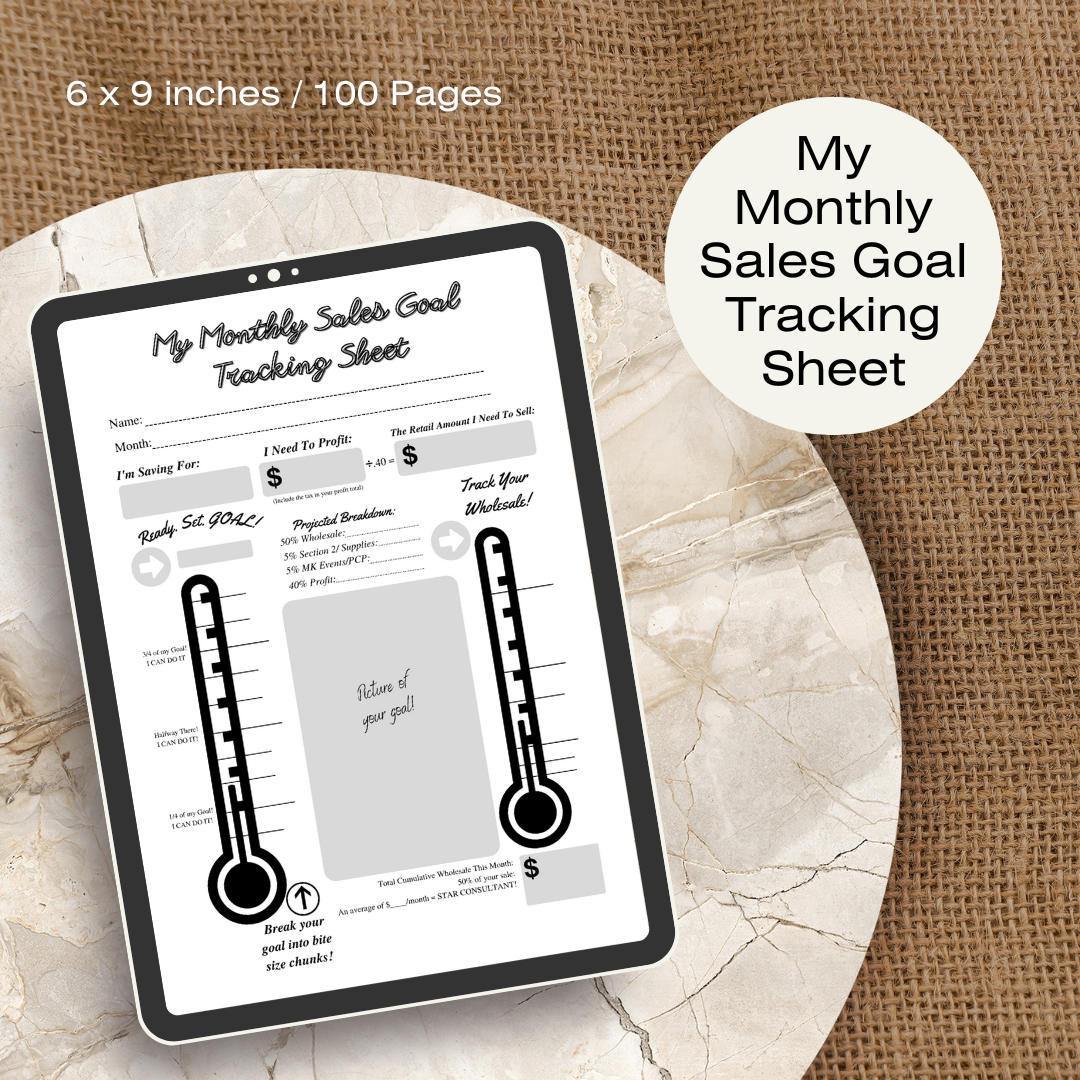
Choose a handful of trackers, such as habits, expenses, or sales, and use them regularly. The Receipt Journal and My Monthly Sales Goal Tracking Sheet are good examples of simple tracking tools that save time at month-end.
Batch your work
Customize several templates in one sitting, and print a month’s worth of pages at a time.
Customization Ideas for Different Needs
For small business owners
- Add your logo and brand colors
- Include fields specific to your products or services
- Create a set of matching forms for orders, tracking, and planning
For busy moms
- Add sections for family schedules or meal plans
- Use bright colors that cheer you up
- Make a simple version for quick check-ins
For students
- Adjust pages for classes, assignments, and study sessions
- Add exam countdowns
For crafters
- Add swatch boxes or measurement charts
- Include photo spaces for finished projects
For wellness enthusiasts
- Add sleep, water, and movement trackers
- Include gratitude prompts

Tips for Getting the Most From Your Templates
Start simple. Don’t customize everything at once. Make the changes that matter most.
Keep a master copy. Duplicate before you edit.
Be consistent. Use the same layout for a few weeks before judging it.
Review and refine. After using a template, note what’s missing or unnecessary, and tweak it.
Organize your Canva folders. Create a folder for your planners, one for business forms, and one for personal trackers.
Check the usage terms. Templates usually come with guidelines about personal and commercial use. Review the terms in your purchase, and don’t resell or share templates in ways that aren’t allowed.
Back up your work. Download copies regularly.
Common Mistakes With Editable Templates
Editing the original. Always make a copy first.
Using too many fonts and colors. Too much variety looks messy.
Making text too small. Keep it legible when printed.
Forgetting to check margins. Make sure nothing gets cut off.
Overcomplicating. Simple layouts are easier to use.
Never using what you made. A beautiful template does nothing if it sits in a folder. Print or open it and start.

Editable Template Checklist
[ ] Open and make a copy of the template
[ ] Review each page
[ ] Edit text, colors, and fonts
[ ] Add or remove pages
[ ] Add personal touches
[ ] Download in the right format
[ ] Print one page as a test
[ ] Use it for a week, then refine
[ ] Back up your files
Final Thoughts
Editable Canva templates offer the best of both worlds: the structure of a professionally designed planner and the flexibility to make it your own. They save you time, reduce stress, and help you stay organized, whether you’re running a business, managing a household, or pursuing a creative hobby.
Choose one area of your life that feels messy, find a template that fits, customize it, and start using it this week.
Ready to save time? Explore the Inbox Tracker (Editable in Canva), the Diet Journal (Editable Canva Template), and the Sewing Journal (Editable Canva Template).









Leave a Reply