

A while ago I asked an AI chatbot to help me organize a messy folder of client files. It gave me a lovely, detailed plan… and then I had to do every single step myself. Rename this, move that, make a spreadsheet of the rest. I remember thinking, “Great advice. Now, can you just do it?”
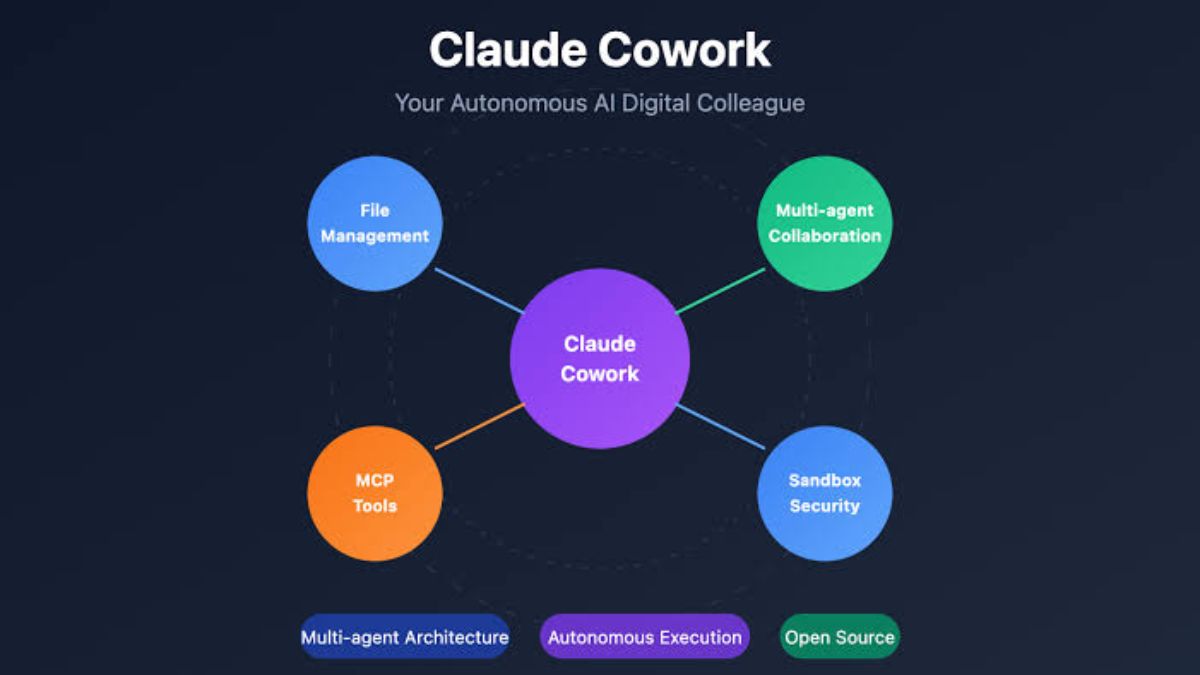
That’s exactly the gap Claude Cowork was created to close. Cowork is Claude’s agentic mode for knowledge work: instead of only answering questions in a chat window, Claude can work with your files, connected apps, and schedules to actually finish tasks. And recent updates have made it far easier to use. Cowork is now generally available, it works on web and mobile as well as desktop, and Anthropic has brought chat and Cowork together into one Claude experience.
In this guide, I’ll explain what Claude Cowork is, what’s new, what it’s good at, and how to start safely, even if you’re not technical at all.
What Is Claude Cowork?
Think of regular Claude chat as a smart friend you text for advice. Cowork is more like a capable assistant sitting at a desk: you give them a goal, they work through the steps, and they check in when they need a decision.
According to Anthropic’s release notes, recent Cowork developments include:
- General availability on desktop. Cowork is generally available on macOS and Windows through the Claude Desktop app.
- Web and mobile access. Cowork is now available on web and mobile, in addition to desktop.
- Scheduled tasks. You can set up recurring work, like a weekly summary that runs on its own.
- Plugins. Cowork can use plugins to add capabilities and workflows, with controls for organizations.
- Assign tasks from anywhere. You can hand tasks to Claude from your phone.
- Memory in Cowork. Claude can remember useful context, with editable topics and a sensitive topics setting so you stay in control.
- Computer use (research preview). In an early preview, Claude can operate parts of your computer to complete tasks.
Press coverage has also described Cowork getting its own browser that doesn’t touch your regular tabs, bookmarks, or saved passwords, and being able to keep working even after you close your laptop. Features like these roll out in stages, so check your own account for what you have.
Chat and Cowork Are Becoming One Claude
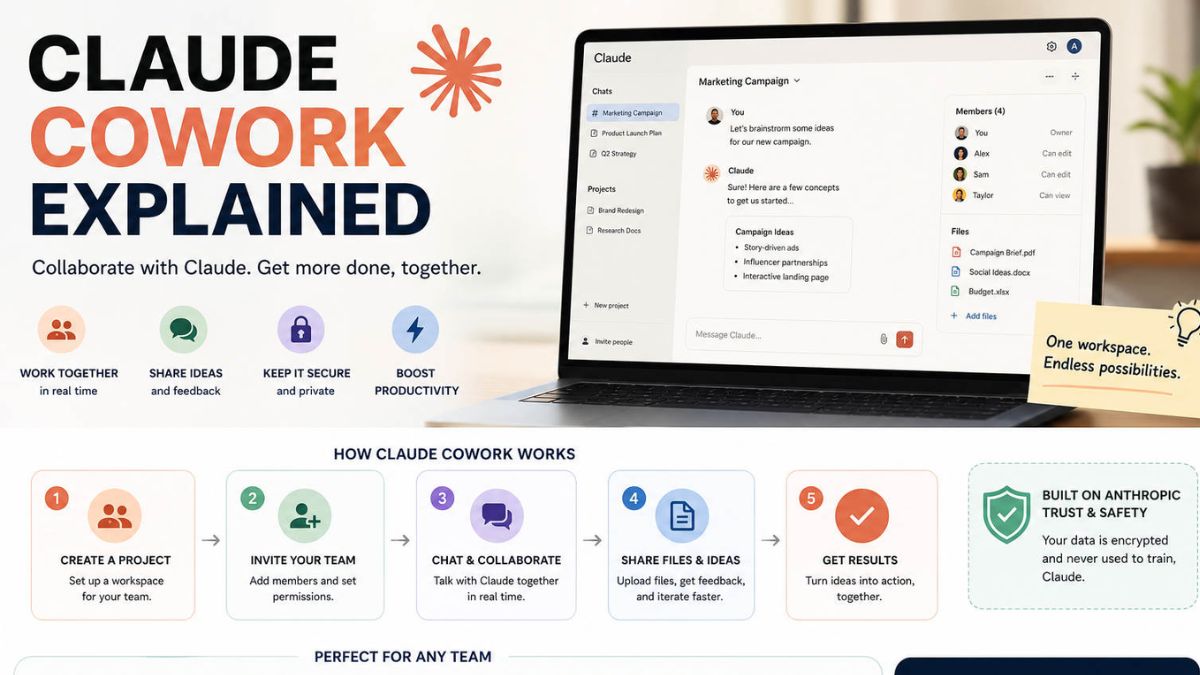
One of the biggest changes is that Anthropic is merging chat and Cowork into a single experience. In plain English: you don’t need to decide up front whether you’re “chatting” or “doing work.” A conversation can start as a question and grow into a longer task that uses your files, connected apps, and schedules.
The rollout began with Pro and Max subscribers on web, desktop, and mobile, and it’s happening in stages, so not every account will see it at the same time. Anthropic also added Docs, Slides, and Design inside conversations, which makes it easy to go from idea to finished deliverable without leaving Claude.
Here’s the truth: the shift from “AI that talks” to “AI that works” is the biggest change in everyday AI use right now, and it rewards people who are clear about what they want done.
What Cowork Is Great At
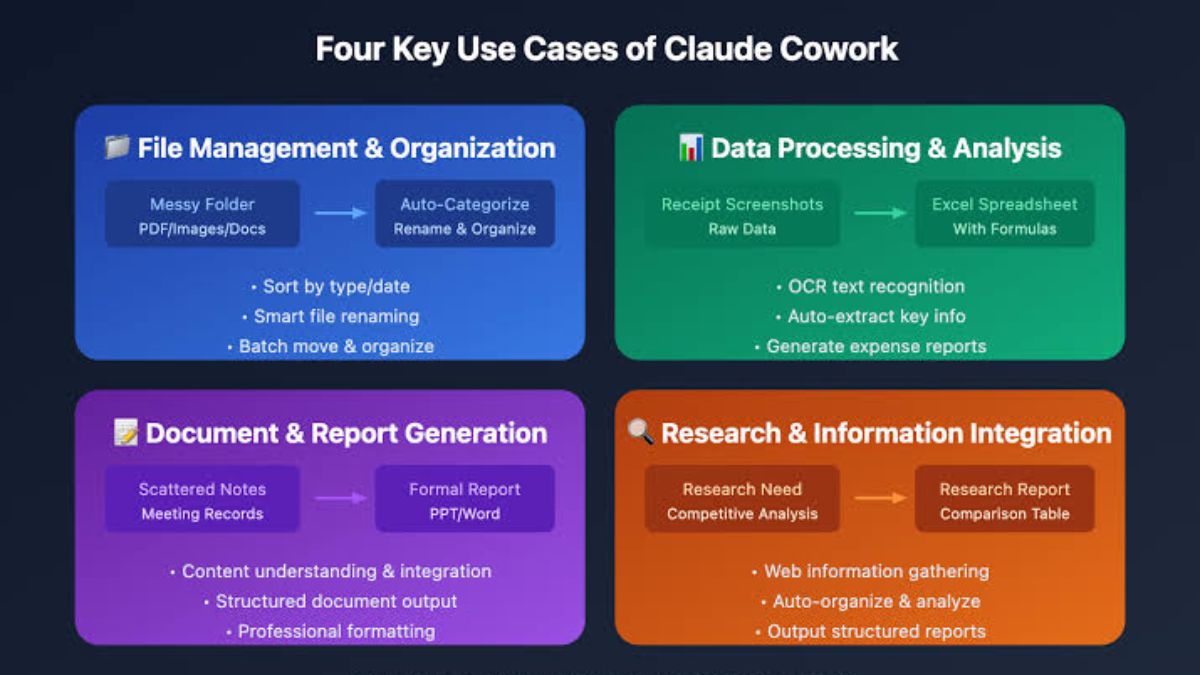
Here are some beginner-friendly examples where an agent beats a plain chatbot:
- File organization. “Sort the documents in this folder by client, rename them consistently, and create a spreadsheet listing each file.”
- Research summaries. “Read these ten PDFs and give me a one-page comparison with key quotes and page numbers.”
- Reports. “Turn this month’s sales spreadsheet into a short report with three insights and a chart.”
- Content repurposing. “Take my latest podcast transcript and create five social posts, a newsletter intro, and a short blog outline.”
- Admin tasks. “Draft follow-up emails to each person on this list, and save them as drafts for me to review.”
- Recurring work. “Every Friday, summarize my notes folder and list open action items.”

How to Start Using Cowork (Step by Step)
Step 1: Pick one small, repeatable task
Choose something you do often and can easily check, like summarizing meeting notes or organizing a folder. Avoid anything where a mistake would be costly on day one.
Step 2: Give clear instructions
A good agent prompt includes:
- The goal: What should be finished?
- The inputs: Which files or information should Claude use?
- The format: What should the output look like?
- The limits: What should Claude NOT do?
- The checkpoint: When should Claude stop and ask you?
Example:
“Review the PDFs in my ‘Client Feedback’ folder. Create a one-page summary with the five most common themes, a short quote for each, and a list of suggested improvements. Don’t delete or move any files. Ask me before doing anything outside this folder.”
Step 3: Set permissions carefully
Only give Cowork access to the folders and apps it needs for the task. Think of it like giving a new assistant a key to one room, not the whole building.
Step 4: Review before you rely on it
Read the output. Check any numbers, names, and claims. If Claude drafted messages, read them before sending anything.
Step 5: Save what works
When you find a prompt that gives a great result, save it. You can build a small library of go-to prompts and even schedule the ones you want to repeat.
Using Memory Wisely
Cowork’s memory can make Claude more helpful over time because it remembers your preferences and context. Anthropic has added editable memory topics and a sensitive topics setting so you can control what Claude remembers. My advice:
- Review what’s remembered every so often.
- Remove outdated or private details.
- Don’t let Claude store sensitive personal, financial, or health information unless you’re comfortable with it.
- Remember that memory is a convenience, not a substitute for your own records.
When Not to Use an Agent
- High-stakes decisions without review. Legal, tax, medical, and financial choices need qualified human advice.
- Anything involving other people’s private data without permission.
- Tasks with unclear goals. If you can’t explain the finished result, the agent can’t either.
- Irreversible actions. Keep backups and ask Claude to draft instead of send or delete.
A Beginner’s Weekly Cowork Routine
- Monday: Ask Claude to summarize last week’s notes and propose three priorities.
- Wednesday: Have it prepare a draft report or content batch for your review.
- Friday: Ask for a wrap-up of what was done and what’s still open.
- Monthly: Review your memory topics and saved prompts, and delete what you don’t need.
Turn Cowork Into a Real Business Advantage
The people who benefit most from Cowork aren’t the most technical. They’re the ones who know what a great result looks like and can describe it clearly. If you’d like a step-by-step playbook for building simple, repeatable Claude workflows for your business, take a look at my guide:

Trust me, a handful of well-built workflows can give you back whole afternoons every week.
Final Thoughts
Claude Cowork is a sign of where everyday AI is headed: less “ask and copy,” more “delegate and review.” Start with one small task, give clear instructions, protect your data with careful permissions, and always check the work. Do that consistently, and Cowork can feel less like a new gadget and more like having an extra pair of hands.










Leave a Reply