


You worked hard on your website. Beautiful design, thoughtful content, carefully chosen products. And then a visitor clicks in, waits… and leaves before the page even finishes loading.
It’s one of the most frustrating, invisible problems in online business. A slow website doesn’t just annoy visitors, it quietly costs you traffic, sales, and search rankings every single day. Studies on user behavior consistently show that even a one-second delay can meaningfully hurt conversions, and Google has made page experience part of how it evaluates sites.
The good news? Most WordPress speed problems come down to a handful of fixable issues. In this guide, I’ll walk you through exactly how to speed up your WordPress website, step by step, starting with the single biggest factor most people overlook: hosting.
Why Website Speed Matters So Much
Before diving into fixes, let’s be clear on what’s at stake:
- Lower bounce rates. Fast sites keep visitors around instead of losing them to a spinning loader.
- Higher conversions. Faster checkout and page loads translate directly into more sales and leads.
- Better SEO rankings. Site speed and page experience are factors Google considers when ranking pages. & Improved user experience. A smooth site feels more trustworthy and professional.
- Lower ad costs. If you run paid traffic, a fast landing page improves your quality score and lowers your cost per click.
In short, speed isn’t a “nice to have.” It’s foundational to every other goal you have for your website.
How to Test Your Current Website Speed
Before fixing anything, measure where you stand. Use free tools such as:
- Google PageSpeed Insights: Shows both real-world and lab data, plus specific recommendations.
- GTmetrix: Gives a detailed breakdown of load time, page size, and requests.
- Pingdom Tools: Offers speed testing from multiple global locations.
Run your homepage and one or two key inner pages through these tools. Note your load time, and pay attention to the biggest “opportunities” or “issues” flagged, since these point you toward the fixes that matter most.
General targets to aim for:
- Page load time under 2-3 seconds
- A “good” Core Web Vitals score in Google’s tools
- A page size that isn’t unnecessarily bloated with heavy images and scripts
The Biggest Speed Factor Most People Ignore: Your Hosting
You can optimize images, minify code, and install every caching plugin available, but if your website sits on slow, overcrowded, budget hosting, you’re fighting an uphill battle. Hosting is the foundation everything else is built on.
Here’s what to look for in speed-focused hosting:
- Modern server technology (such as LiteSpeed) instead of outdated setups
- NVMe or SSD storage rather than older, slower drives
- Built-in caching that works well with WordPress
- A content delivery network (CDN) to serve your site faster to visitors around the world
- Reasonable server resources for your plan, without excessive overcrowding
- Data center locations near your target audience
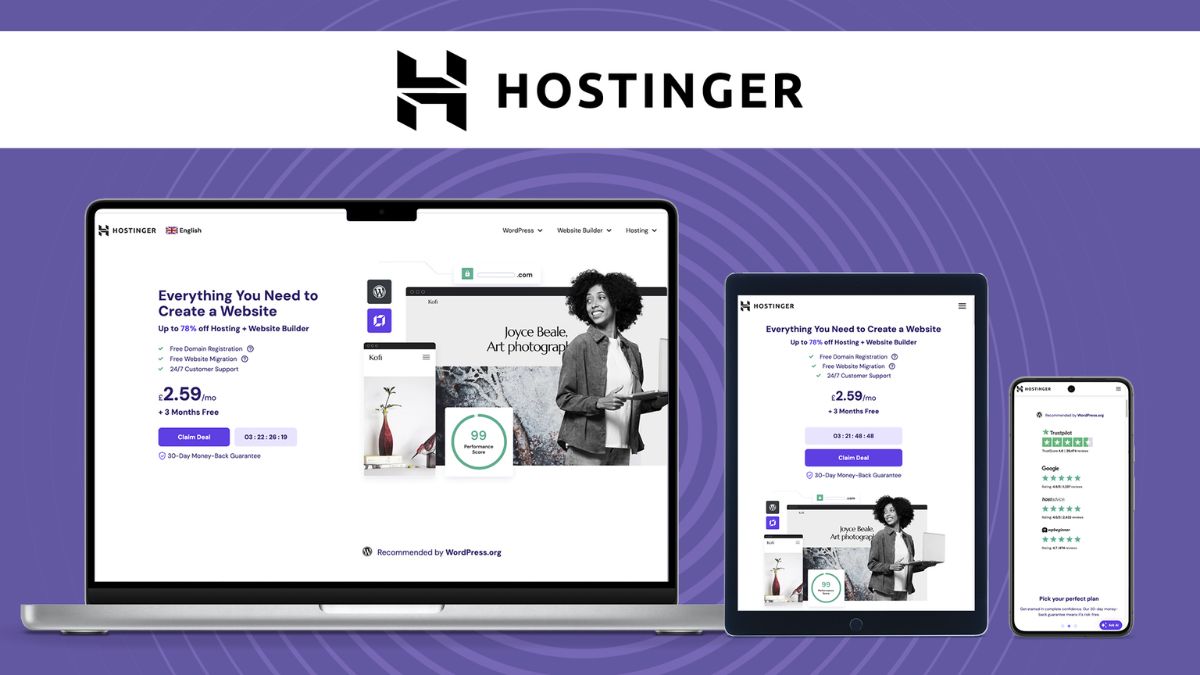
This is exactly why I recommend Hostinger for WordPress site owners who care about speed:
- LiteSpeed Web Server technology, which is built for speed and pairs with the free LiteSpeed Cache plugin
- NVMe storage on many plans for faster data access
- Built-in caching tools designed specifically to work well with WordPress
- Global data centers, so you can choose a location close to your audience
- Free SSL certificate, which is both a security and speed-friendly essential
- Simple hPanel dashboard where performance settings are easy to find and adjust
- Scalable plans, from shared hosting up to cloud hosting, so you can add resources as your traffic grows
- 24/7 live chat support if you need help troubleshooting
If you’ve optimized everything on this list and your site is still slow, the honest answer is often that your hosting is the bottleneck. Switching to a faster host can solve in minutes what hours of plugin tweaking never could.
👉 See Hostinger’s hosting plans and give your site a faster home.

Step 1: Choose a Lightweight Theme
Heavy, feature-stuffed themes are one of the most common speed killers. Many “all-in-one” themes load unnecessary CSS, JavaScript, and features on every page, even ones you never use.
Look for themes that are:
- Built with clean, minimal code
- Regularly updated by their developers
- Known for strong speed test results
- Simple rather than crammed with built-in page builders and effects
Popular lightweight options include Astra, Kadence, GeneratePress, and Blocksy. If your current theme feels sluggish, switching to a lighter one is often one of the fastest wins available.
Step 2: Install a Caching Plugin
Caching creates a ready-to-serve version of your pages, so WordPress doesn’t have to rebuild them from scratch for every visitor. This dramatically reduces load times.
If you’re hosting with Hostinger, the LiteSpeed Cache plugin is available and works especially well with their servers. It handles page caching, image optimization, minification, and more, all in one free plugin.
Basic caching setup steps:
- Install and activate your caching plugin.
- Enable page caching.
- Turn on browser caching so repeat visitors load pages faster.
- Enable CSS/JS minification carefully, testing your site afterward to make sure nothing breaks.
- Set a reasonable cache expiration and exclude any pages that shouldn’t be cached, such as checkout pages.

Step 3: Optimize Your Images
Images are usually the single largest contributor to page weight. A single uncompressed photo can be many times larger than it needs to be.
How to optimize images:
- Resize images to the actual dimensions they’ll display at, not the original camera resolution.
- Compress images before uploading, using tools or plugins that reduce file size with minimal quality loss.
- Use modern formats like WebP, which are smaller than traditional JPEG or PNG files.
- Enable lazy loading, so images below the fold only load as the visitor scrolls to them.
- Add descriptive alt text, which helps both accessibility and SEO.
Many caching and image plugins can automate compression and format conversion, so you don’t have to manually edit every photo.
Step 4: Minimize and Clean Up Plugins
Every plugin adds some amount of code that has to load. A handful of well-chosen plugins won’t hurt you, but a bloated plugin list will.
Plugin cleanup checklist:
Deactivate and delete plugins you’re not actively using.
Avoid multiple plugins that do the same job (for example, two SEO plugins).
Check plugin reviews and update history before installing anything new.
Look for lightweight alternatives to heavy, feature-bloated plugins.
Regularly audit your plugin list every few months.
A good rule of thumb: if you can’t remember why you installed a plugin, you probably don’t need it anymore.

Step 5: Reduce Render-Blocking Resources
Certain CSS and JavaScript files can block your page from displaying until they’ve fully loaded. Speed tools often flag this as “eliminate render-blocking resources.”
Ways to address this:
- Enable CSS and JavaScript minification through your caching plugin.
- Defer non-critical JavaScript so it loads after the main content.
- Load critical CSS inline and defer the rest, a feature many caching plugins offer with a toggle.
- Remove unused CSS and JavaScript where possible, often flagged specifically by speed testing tools.
Test your site after each change, since overly aggressive settings can occasionally break page layouts or functionality.
Step 6: Use a Content Delivery Network (CDN)
A CDN stores copies of your website’s static files on servers around the world. When someone visits your site, the files load from the server closest to them, which speeds up delivery significantly, especially for visitors far from your main hosting location.
Many caching solutions, including LiteSpeed Cache, offer integrated CDN options, making it straightforward to set up without needing separate technical configuration.

Step 7: Optimize Your Database
Over time, your WordPress database accumulates clutter: post revisions, spam comments, transient data, and more. This buildup can slow down database queries.
Simple database cleanup steps:
- Limit the number of post revisions WordPress stores.
- Empty your trash and spam comments regularly.
- Remove unused plugins and their leftover database tables.
- Use your caching plugin’s database optimization tools, if included, to clean things up periodically.
Always back up your database before running any cleanup tool, just in case.
Step 8: Keep Everything Updated
Outdated WordPress core files, themes, and plugins aren’t just a security risk, they can also include unoptimized code that newer versions have since improved. Make a habit of:
- Updating WordPress core promptly
- Updating themes and plugins regularly
- Removing anything abandoned by its developer and no longer receiving updates
- Testing updates on a staging site first if your plan includes one, to avoid surprises on your live site
Step 9: Limit External Scripts and Embeds
Third-party scripts, such as certain ad networks, embedded videos, chat widgets, and font services, can silently slow your site because your speed depends on their servers too.
How to reduce the impact:
- Only add third-party scripts you truly need.
- Load chat widgets and non-critical scripts asynchronously or with a delay.
- Replace heavy embeds with lighter-weight alternatives when possible.
- Regularly audit your site for scripts you forgot were even there.

Step 10: Monitor and Maintain Speed Over Time
Speed optimization isn’t a one-time project. As you add content, plugins, and images, performance can gradually slip. Build these habits:
- Re-test your speed every few months using PageSpeed Insights or GTmetrix.
- Review Core Web Vitals inside Google Search Console.
- Recheck your plugin list periodically.
- Re-compress and clean up your media library as it grows.
- Revisit your hosting plan if your traffic has significantly increased, upgrading to more resources or cloud hosting when needed.
When to Consider Upgrading Your Hosting Plan
If you’ve implemented the steps above and your site is still sluggish, especially during traffic spikes, it may be time to move to a higher-tier plan. Signs it’s time to upgrade include:
- Your site slows down noticeably during busy periods
- You’re running an online store with growing order volume
- You’ve added many pages, products, or high-resolution media
- Your current plan’s resource limits are frequently maxed out
With Hostinger, you can move from shared hosting to cloud hosting for significantly more power without switching companies or migrating your site elsewhere, which keeps the upgrade process simple.
Common WordPress Speed Mistakes to Avoid
- Blaming plugins while ignoring hosting. Sometimes the real bottleneck is your server.
- Installing too many “speed” plugins at once. They can conflict with each other.
- Uploading huge, uncompressed images. This alone can double your page weight.
- Never testing after changes. Some optimizations can break layouts or features.
- Choosing a heavy theme with unnecessary features. Simplicity often wins.
- Forgetting mobile performance. Always test speed on mobile, not just desktop.
Frequently Asked Questions
Why is my WordPress site so slow? Common causes include slow hosting, unoptimized images, too many plugins, a heavy theme, and lack of caching. Testing your site with a speed tool will usually reveal the biggest culprits.
How fast should my website load? Aim for under 2-3 seconds. Faster is always better, especially for ecommerce and lead-generation sites.
Is hosting really that important for speed? Yes. Hosting is the foundation your entire site runs on. Even a perfectly optimized site will struggle on slow, overcrowded servers.
Do I need a CDN? If you have visitors from multiple regions or countries, a CDN can meaningfully improve load times. Many hosting and caching solutions include CDN options.
Will caching plugins fix everything? Caching helps a lot, but it works best combined with good hosting, optimized images, a lightweight theme, and a lean plugin list.
How often should I check my website speed? Check every few months, or after making significant changes like adding a new plugin, theme, or large batch of content.
Give Your Website the Speed It Deserves
A slow website silently undermines every hour you’ve put into your content, design, and marketing. The fix doesn’t require becoming a developer. It requires a smart theme, a lean plugin list, optimized images, good caching, and most importantly, hosting built for speed.
If you’ve addressed the technical basics and your site still feels sluggish, your hosting is very likely the missing piece.
👉 Move your website to Hostinger and experience the speed difference.
With LiteSpeed technology, free SSL, 24/7 live chat support, and a 30-day money-back guarantee, there’s little risk in trying a faster foundation for your site. Your visitors are waiting. Don’t make them wait any longer than they have to.








Leave a Reply